How to Lock Atten's Screen Time Settings
Create an iOS Shortcut to ensure your screen time settings stay active
To enhance the security of your Atten sessions and prevent Atten's access to Screen Time from being disabled during a session, we've prepared a step-by-step guide for you. This guide will walk you through the process of using the built-in iOS app, Shortcuts, to ensure your screen time settings remain active during your focus sessions. This feature is particularly useful for maintaining your Screen Time permissions. To get started, follow these steps:
What you'll achieve
- Create a shortcut that checks if Atten is active and restricts the Settings app to prevent you from disabling Atten's access to Screen Time
Part 1: Creating the Shortcut
Open Shortcuts and Create New
Open the Shortcuts app on your iPhone and tap the "+" button to create a new shortcut.
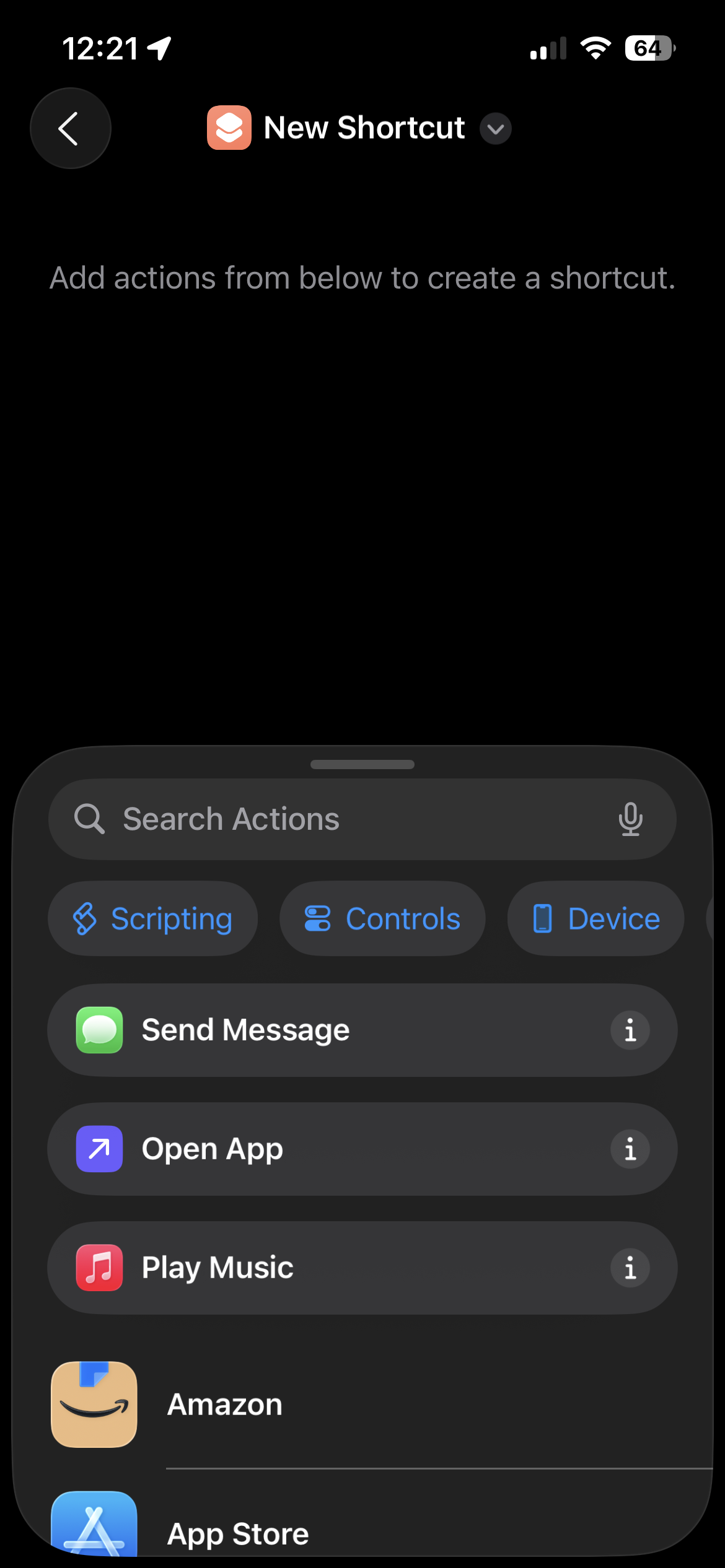
Name Your Shortcut
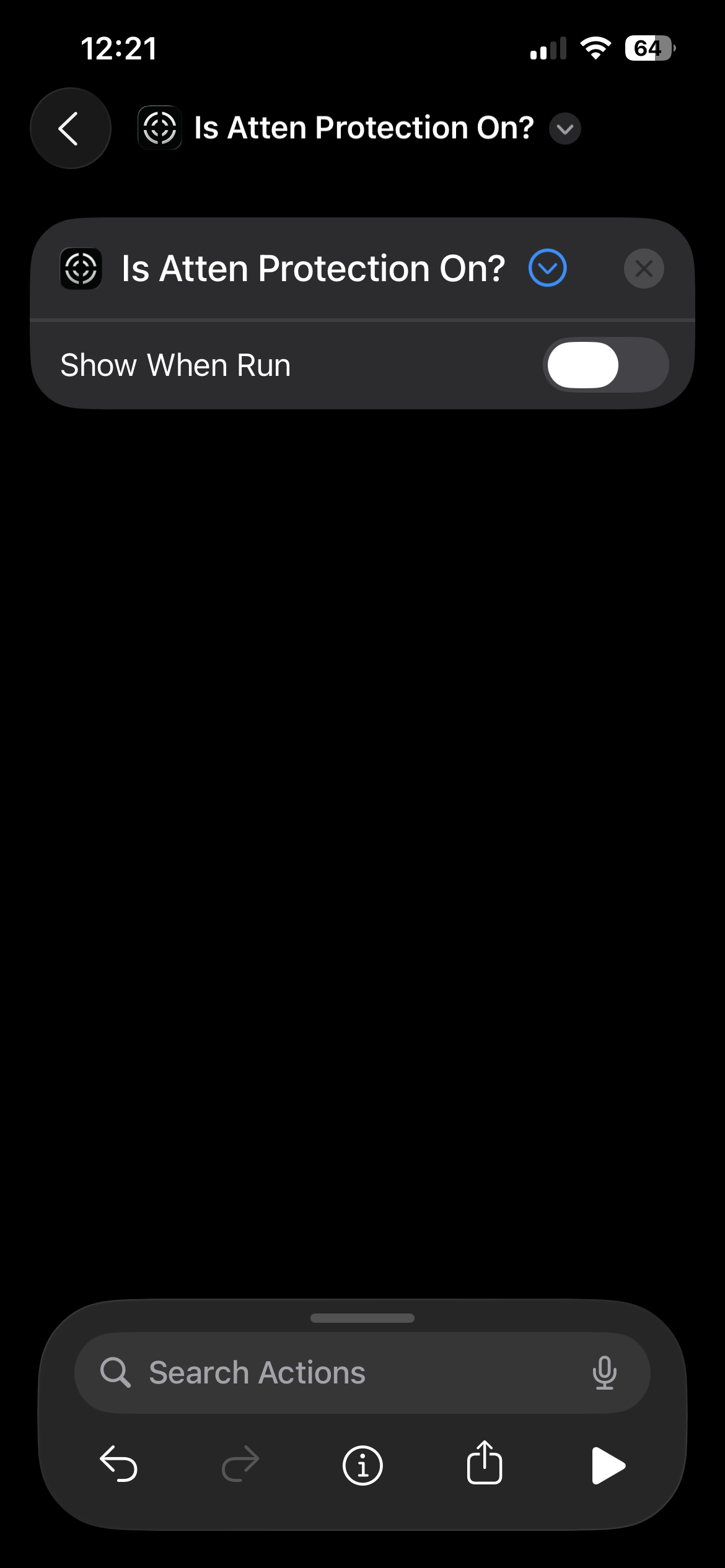
Search for "Atten" and tap the shortcut "Is Atten Protection On?", then disable the "Show when run" option.
Add If Statement
Search for and add an "If" action. This will check whether Atten is active.
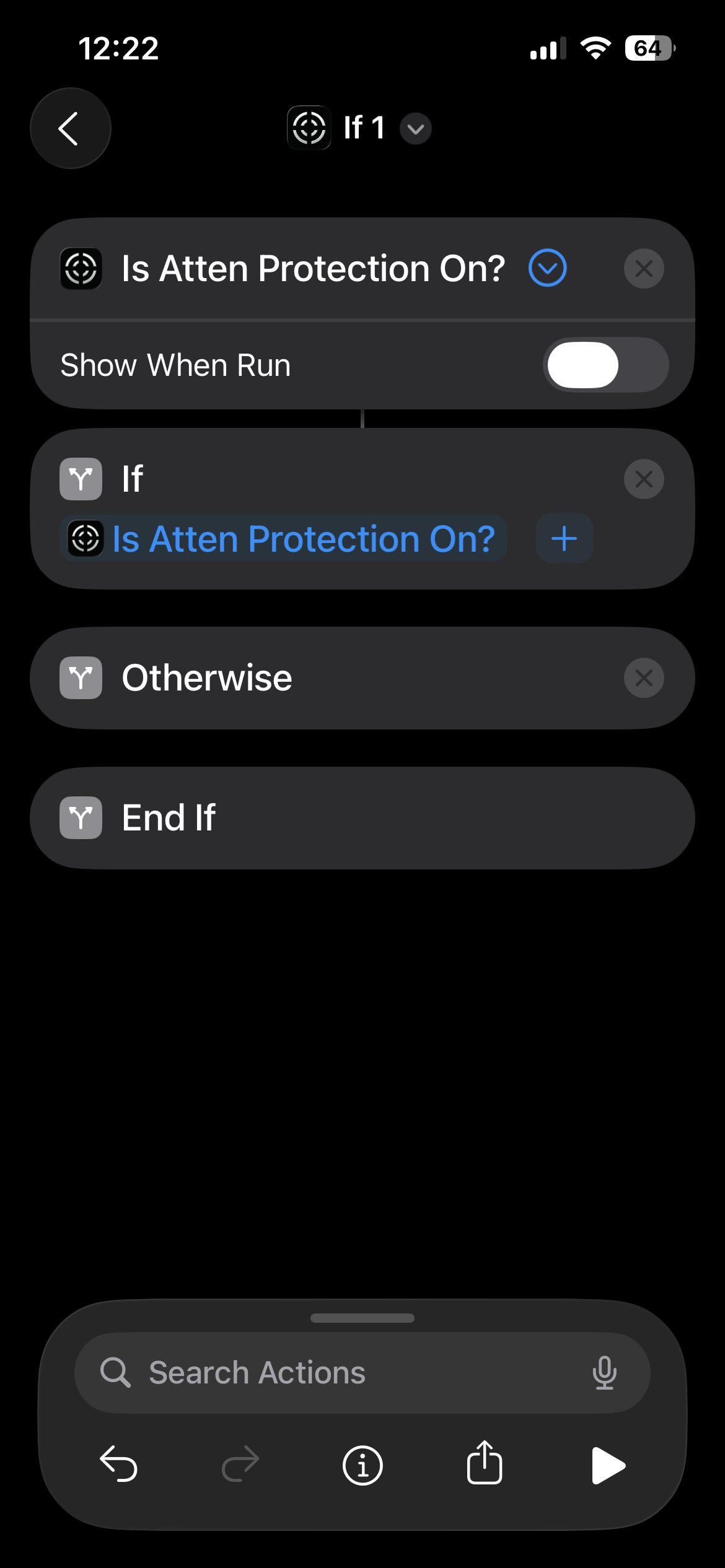
Note: This checks whether Atten is active. If it is, the shortcut will run.
Complete the Shortcut
Add actions for when Atten is active. Tap on "Search Actions" and search for "Open App", then select the "Atten" app.
- If Atten is active, the Atten app will open.
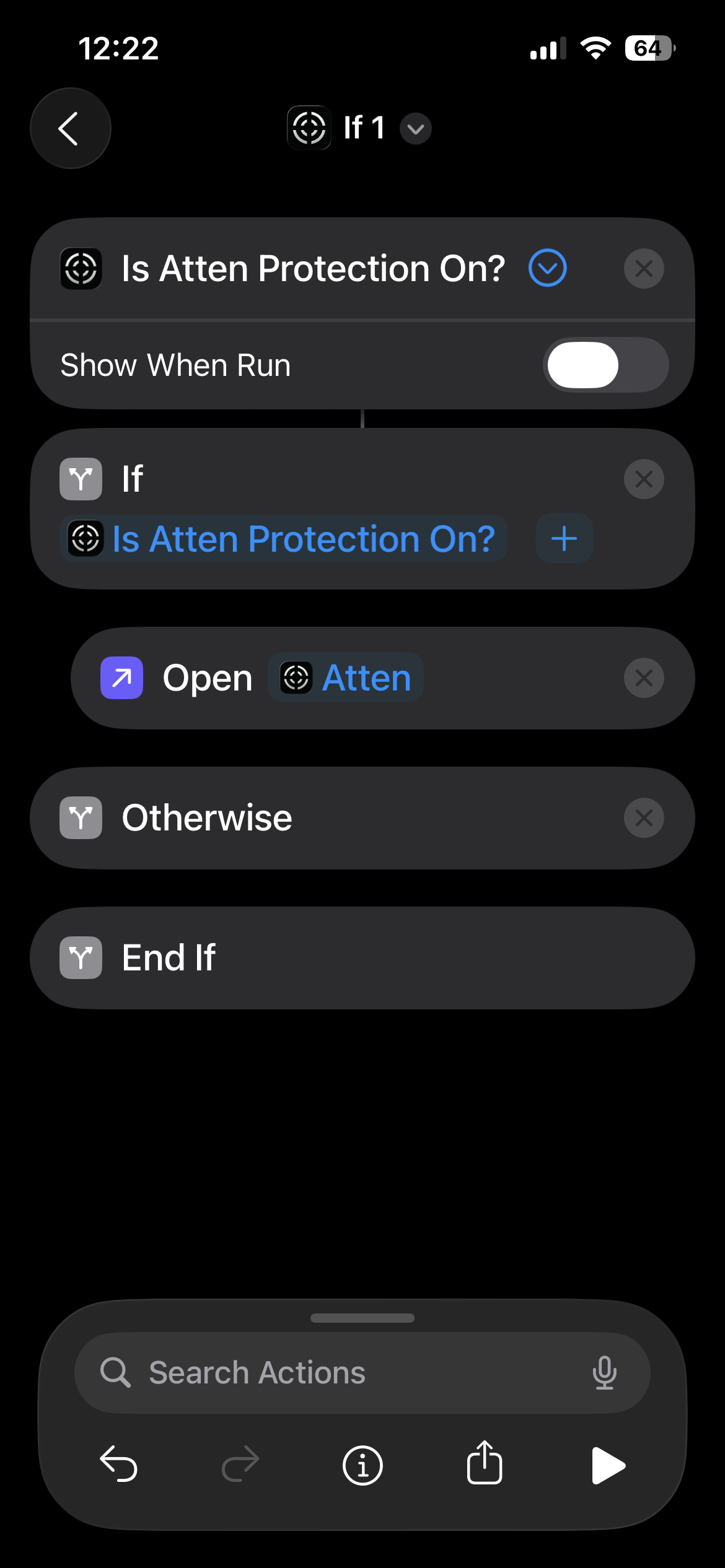
Part 2: Setting Up Automations
Go to Automations Tab
In the Shortcuts app, tap on the "Automations" tab at the bottom.
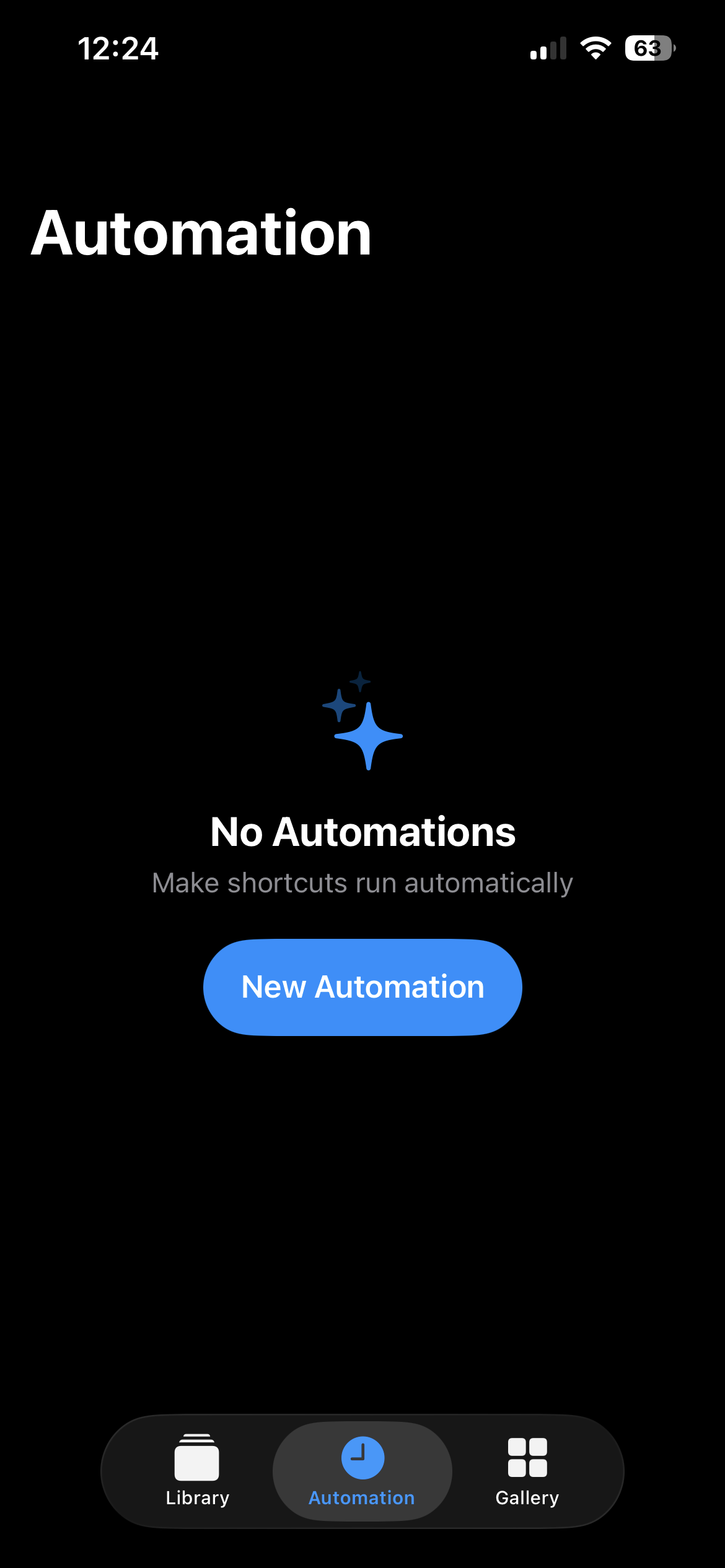
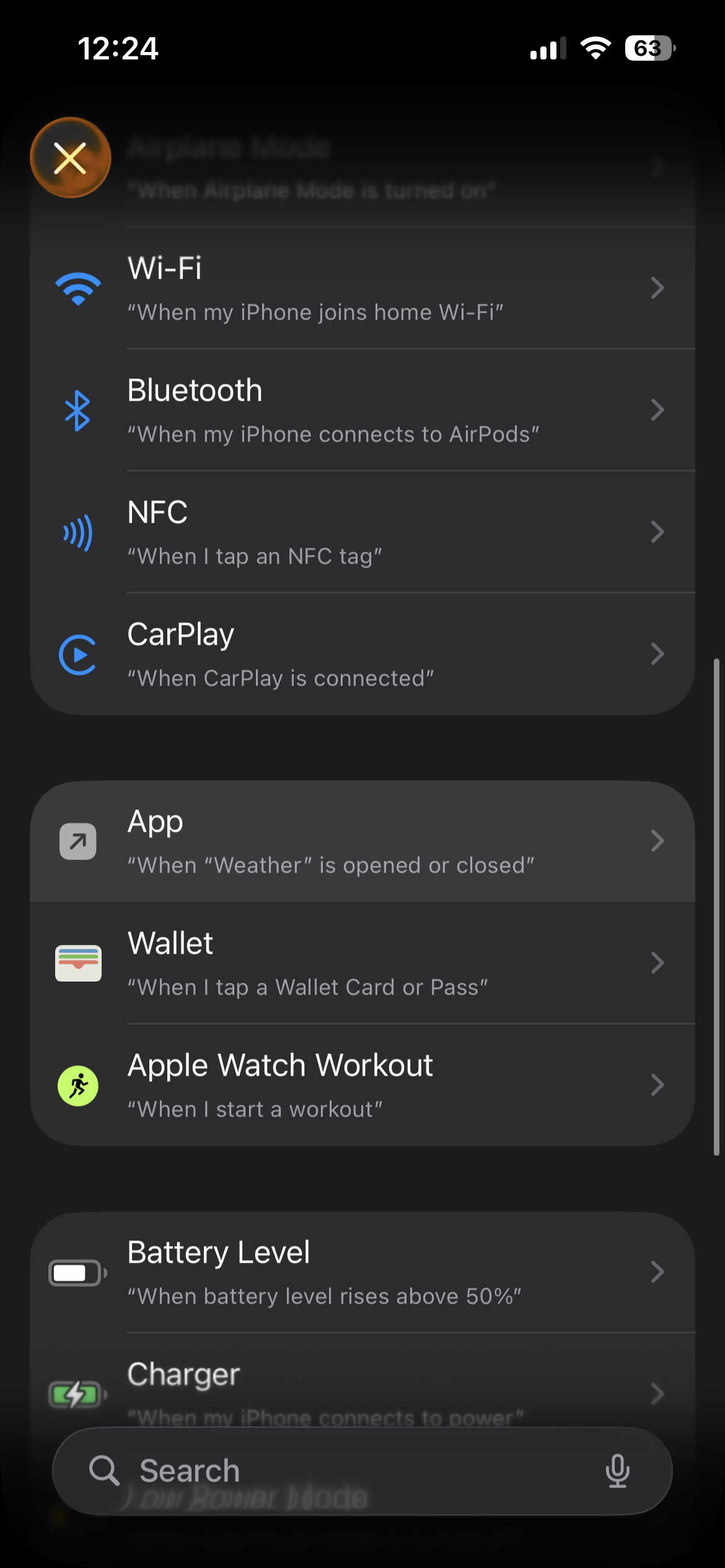
Create New Automation
Tap the "+" button and select "When App Opens". This will run your shortcut automatically.
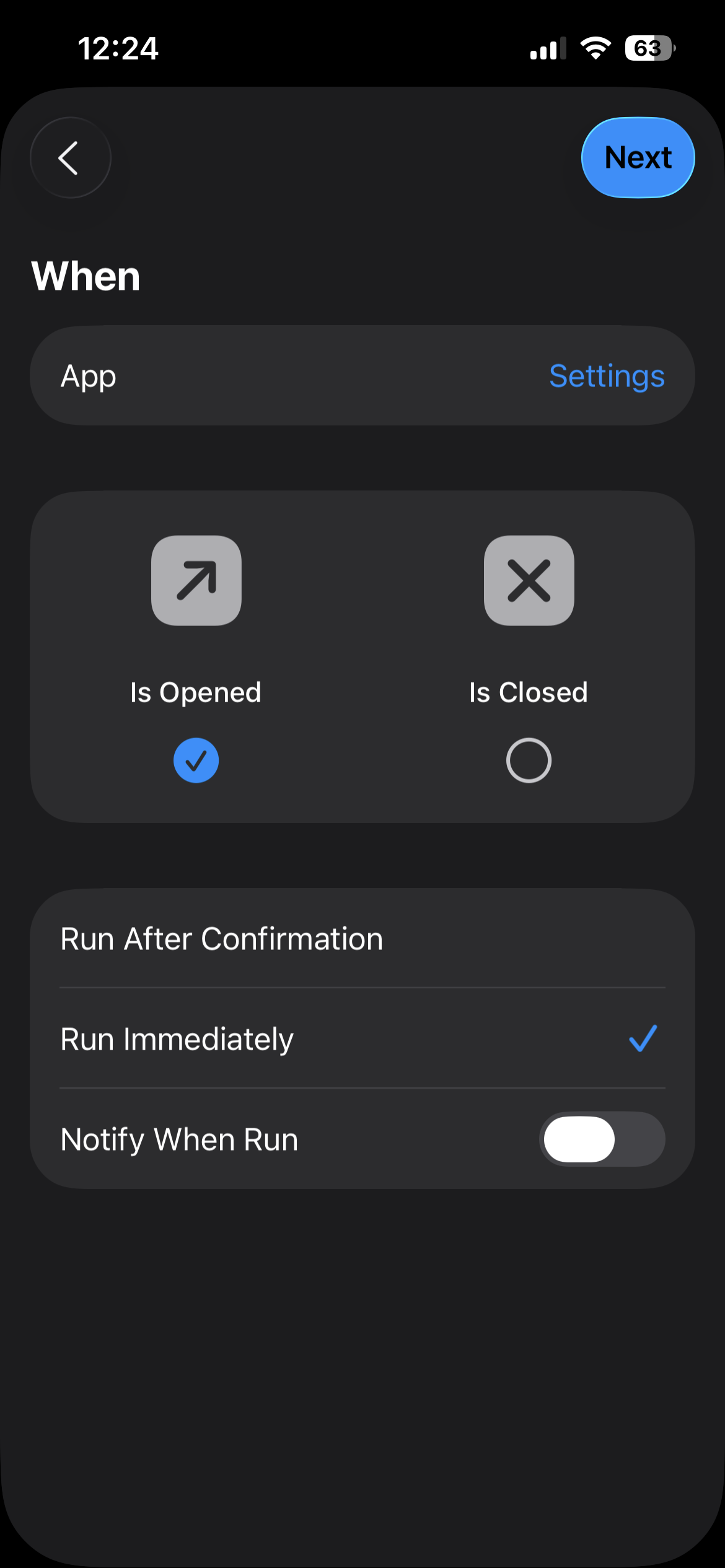
Select Settings App
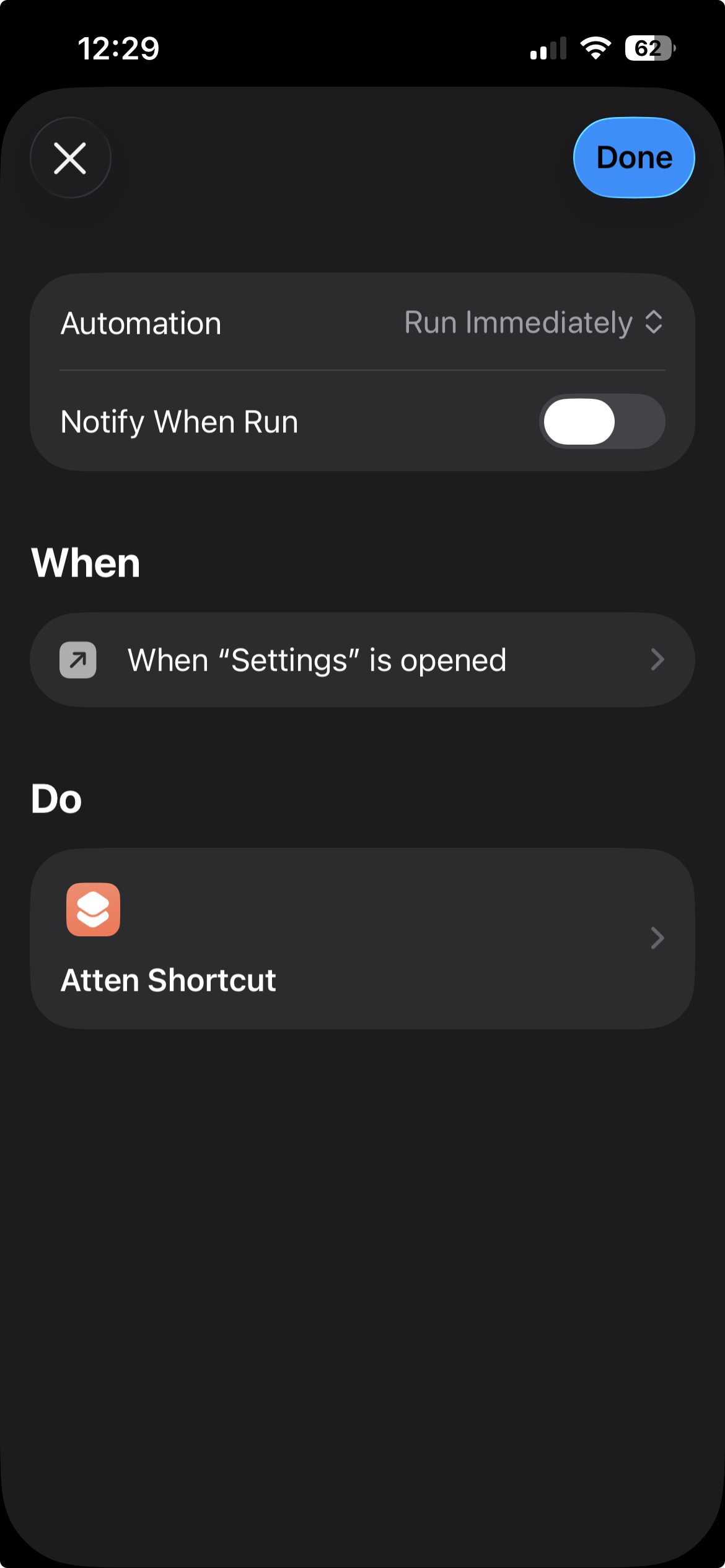
Choose "Settings" as the app. This ensures the shortcut runs when you open the Settings app. Select "Run Immediately" and turn off "Notify When Run".
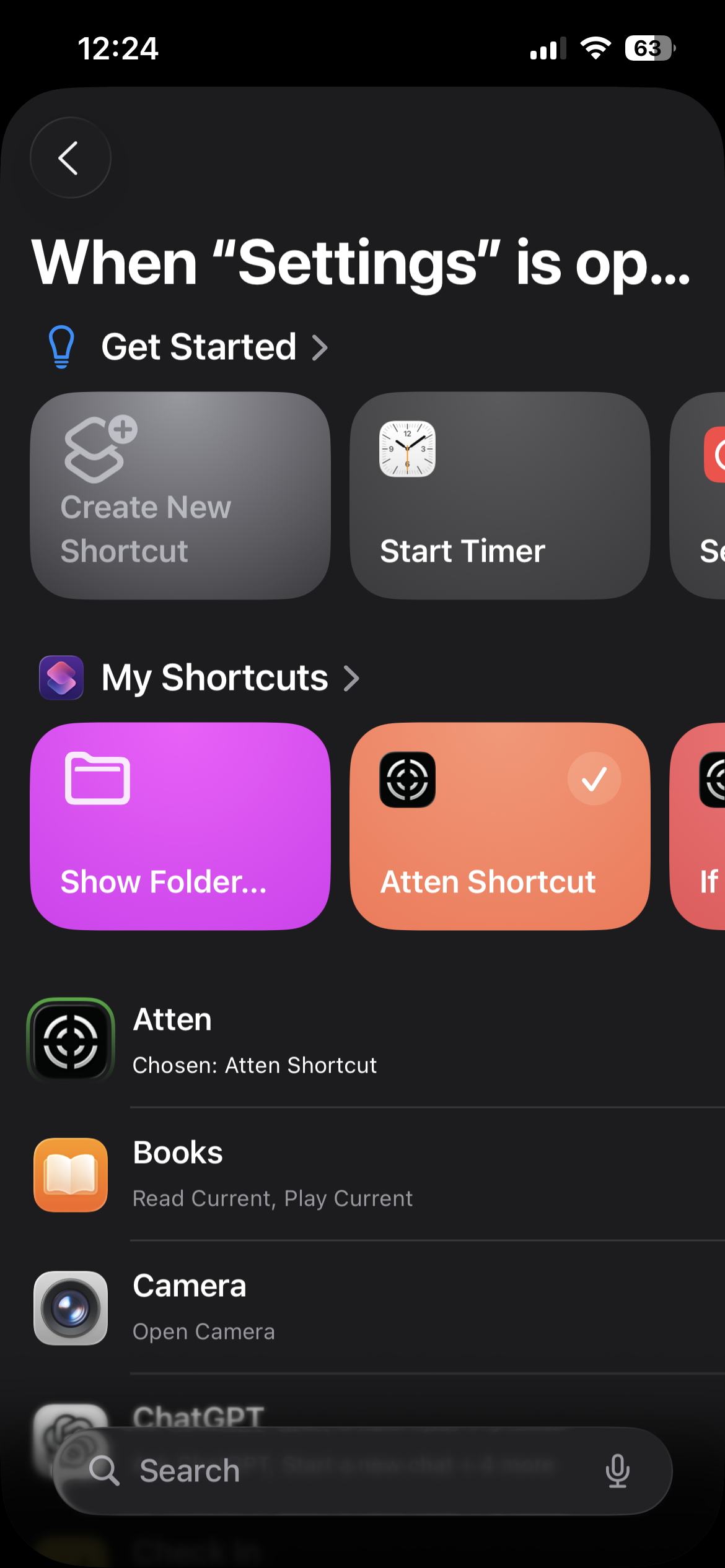
Select Your Shortcut
Press "Next", then choose the "Is Atten Protection On?" shortcut you created earlier.
Configure Automation Settings
For the best experience:
- Make sure you've turned off "Show When Run" in the shortcut
- Make sure you've turned off "Notify When Run" in the automation
Extra Protection
You can also block the "Shortcuts" app using Atten to prevent the automation from being disabled.
- Open Atten and tap the "+" button to create a new session.
- Block the "Shortcuts" app every day from 12:00 AM to 11:59 PM. This will ensure it always runs, and use "Strict Mode" to prevent changes to the session.
- Go to Settings in Atten and turn off "Allow ending strict blocks". By default, users can end a strict mode session once every 7 days. Disabling this setting prevents that option entirely.
Video Tutorial
Watch the complete setup process in action
Troubleshooting
The automation isn't running
Make sure you have an active Atten session.