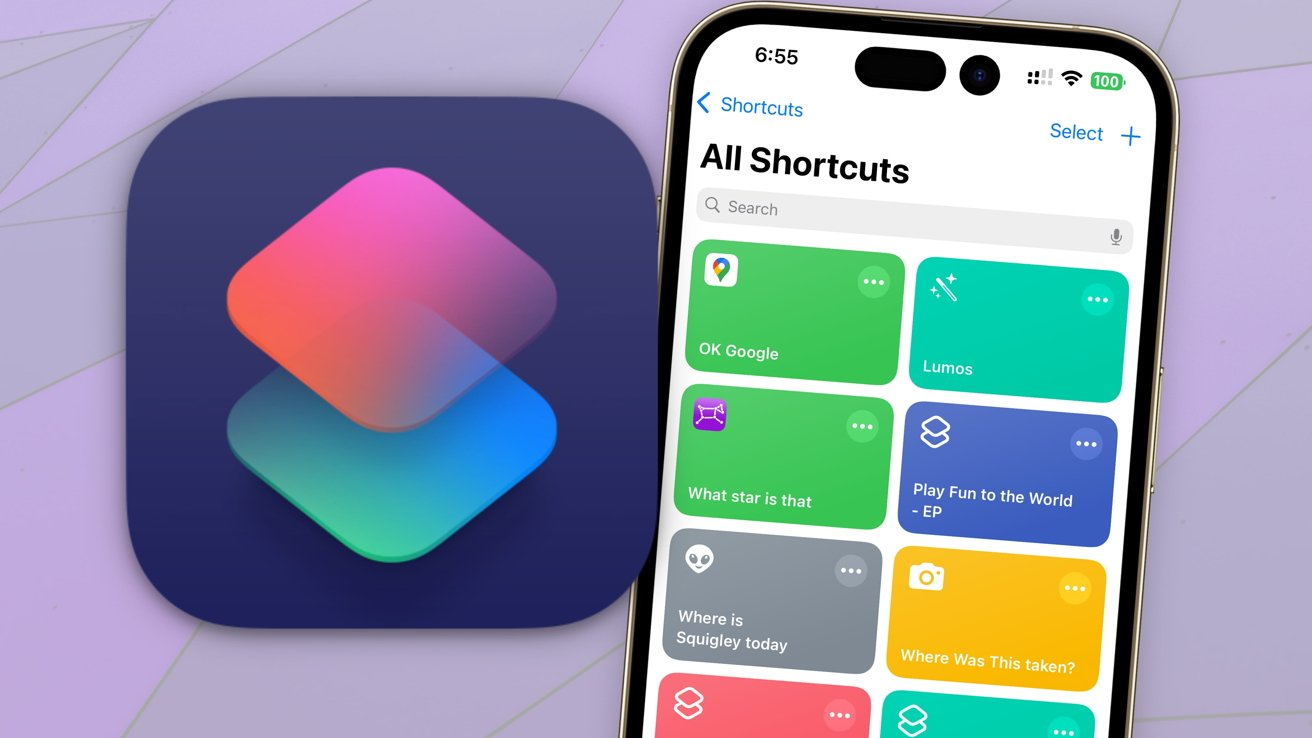
The iOS Shortcuts app opens up powerful automation possibilities for Atten. You can create automations that start focus sessions based on your location, time of day, or other triggers—helping you stay focused without thinking about it.
What you'll achieve
- Set up Atten's "Start quick block" shortcut with your preferred apps and duration
- Create location-based automations for work or school
- Sync Atten sessions with Focus modes and other apps
- Build a personalized productivity system that works automatically
Initial Setup: Configure Your Session Automation
Important First Step
Before creating any automations, you need to configure Atten's "Start quick block" shortcut. This setup determines which apps get blocked and for how long when your automations run.
Setting Up Your Base Shortcut:
- Open Shortcuts and Find Atten
Open the Shortcuts app and tap the search icon. Type "Atten" to find available shortcuts.
- Select 'Start Quick Block' Shortcut
Tap on the "Start Quick Block" shortcut from Atten. This is the foundation for all your automations.
- Configure Your Blocklist
You'll be prompted to select which apps to block during your focus sessions. Choose the apps that distract you most—social media, games, news apps, etc.
Tip: Start with your top 5-7 most distracting apps. You can always adjust this list later by editing the shortcut.
- Set Session Duration
Choose how long your focus sessions should last. Common options include:
- 25 minutes (Pomodoro technique)
- 45 minutes (Deep work session)
- 90 minutes (Extended focus block)
- 2 hours (Morning productivity sprint)
- Save Your Configuration
Tap "Done" to save your shortcut. You can now use this as a building block for automations.
1. Work Arrival Automation
Automatically start a focus session when you arrive at work or school. Your phone will block distracting apps as soon as you reach your destination.
How to Set It Up:
- In Shortcuts, tap Automation → Create Personal Automation
- Select Arrive as your trigger
- Choose your work/school location or set a specific address
- Set the arrival radius (default is ~100 meters)
- Tap Next, then Add Action
- Search for and select your configured "Start Quick Block" shortcut
- Turn off Ask Before Running for seamless automation
- Tap Done to activate
Pro tip: Set different session lengths for different locations. Create separate shortcuts for "Work Focus" (2 hours) and "Library Study" (45 minutes).
2. Morning Routine Integration
Start your day right by automatically blocking distractions during your morning routine or first work block.
Setup Steps:
- Create automation with Time of Day trigger
- Set your preferred start time (e.g., 9:00 AM)
- Choose which days to run (weekdays, everyday, custom)
- Add your "Start Quick Block" action
- Optional: Add additional actions like:
- Turn on Do Not Disturb
- Open a specific app (like your task manager)
- Play focus music playlist
Enhancement: Combine with iPhone's Sleep Schedule to trigger when you turn off your morning alarm.
3. Calendar-Based Focus Sessions
Sync Atten with your calendar to automatically start focus sessions during scheduled work blocks or meetings.
Configuration Process:
- Install a calendar app that supports Shortcuts (like Fantastical or Calendars 5)
- Create events with specific keywords like "Deep Work" or "Focus Time"
- Set up automation with When I run a shortcut trigger
- Use the calendar app's shortcuts to check for events
- Add conditional logic: If event contains "Focus", run Atten block
- Schedule this check to run every 30 minutes during work hours
Alternative: Use iOS Focus modes tied to calendar events, then trigger Atten when Focus mode activates.
4. Study Session Pomodoros
Create a complete Pomodoro workflow with automatic breaks and focus sessions.
Building Your Pomodoro System:
- Create multiple shortcuts:
- "Start Pomodoro" - 25-minute Atten block
- "Short Break" - 5-minute timer
- "Long Break" - 15-minute timer
- Use Personal Automation with app triggers
- When timer ends → Show notification asking "Ready for next session?"
- Notification action → Run next shortcut in sequence
- Track completed pomodoros in Notes or task app
Tip: Add haptic feedback and custom sounds to mark session transitions without looking at your phone.
5. Focus Mode Sync
Coordinate Atten with iOS Focus modes for comprehensive distraction blocking across all device features.
Integration Steps:
- Set up iOS Focus mode (Work, Study, etc.) in Settings
- Create automation: When Focus mode turns on
- Add action: Run "Start Quick Block" shortcut
- Configure reverse automation for when Focus turns off
- Optional enhancements:
- Adjust screen brightness
- Enable Low Power Mode
- Open specific productivity apps
- Send "Going dark" message to contacts
Advanced Tips & Tricks
Variable Duration Sessions
Create multiple versions of your shortcut with different durations. Name them clearly like "Quick Focus (25m)" or "Deep Work (90m)" for easy selection.
Context-Aware Blocking
Use If statements in shortcuts to check time, location, or calendar before starting sessions. Block different apps for work vs. personal focus time.
Break Reminders
Add a "Wait" action after your Atten block, followed by a notification reminding you to take a break. Include options to start another session or end for the day.
Progress Tracking
Log completed sessions to a note or spreadsheet. Add the current date/time and session length to track your focus habits over time.
Troubleshooting Common Issues
Automation not running automatically?
Ensure "Ask Before Running" is turned off in your automation settings. Some triggers (like location) require this to be enabled for a few days before iOS trusts the automation.
Shortcuts can't find Atten actions?
Make sure Atten is installed and you've opened it at least once. Try searching for "Quick Block" or browse the "Apps" section in Shortcuts.
Want more complex automations?
Explore third-party apps like Pushcut or Toolbox for Shortcuts. These add advanced features like web triggers, complex conditionals, and integration with more services.
Ready to Automate Your Focus?
Start with one simple automation and build from there. Download Atten to unlock the full power of iOS Shortcuts for productivity.
Get Atten Free